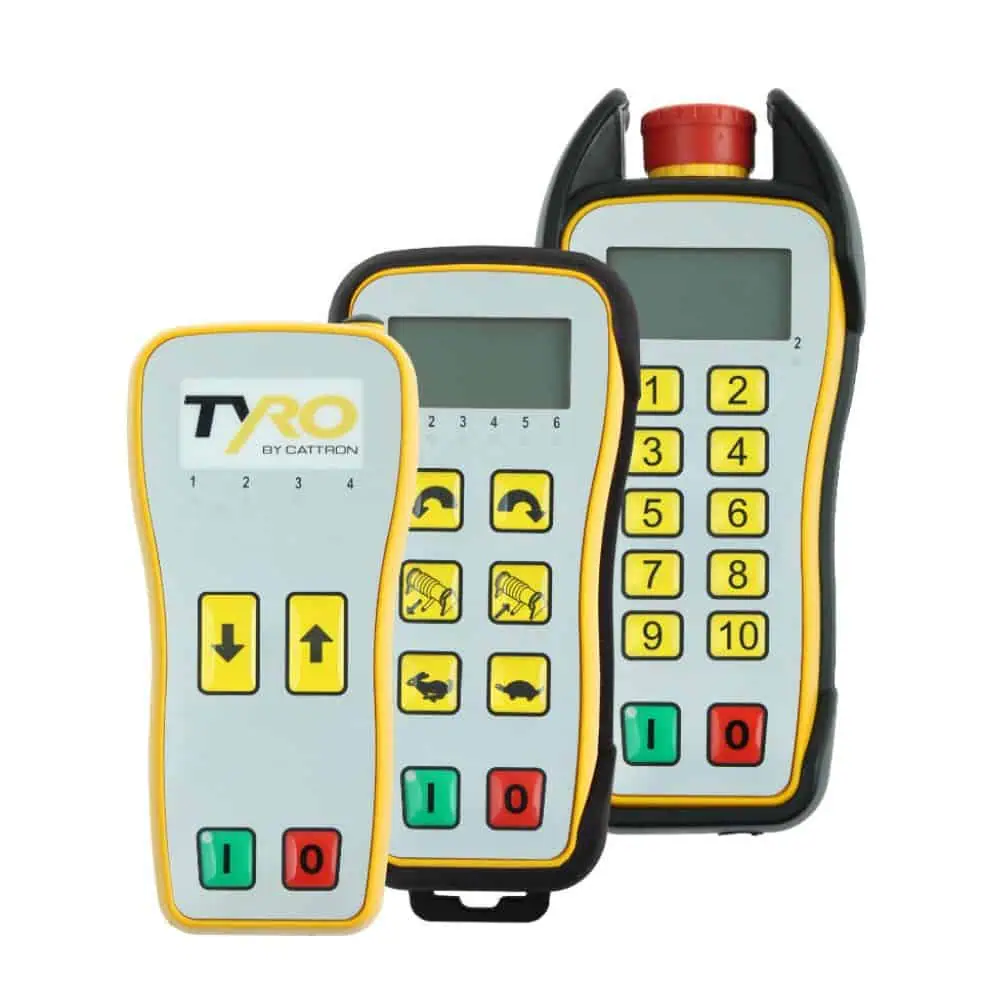
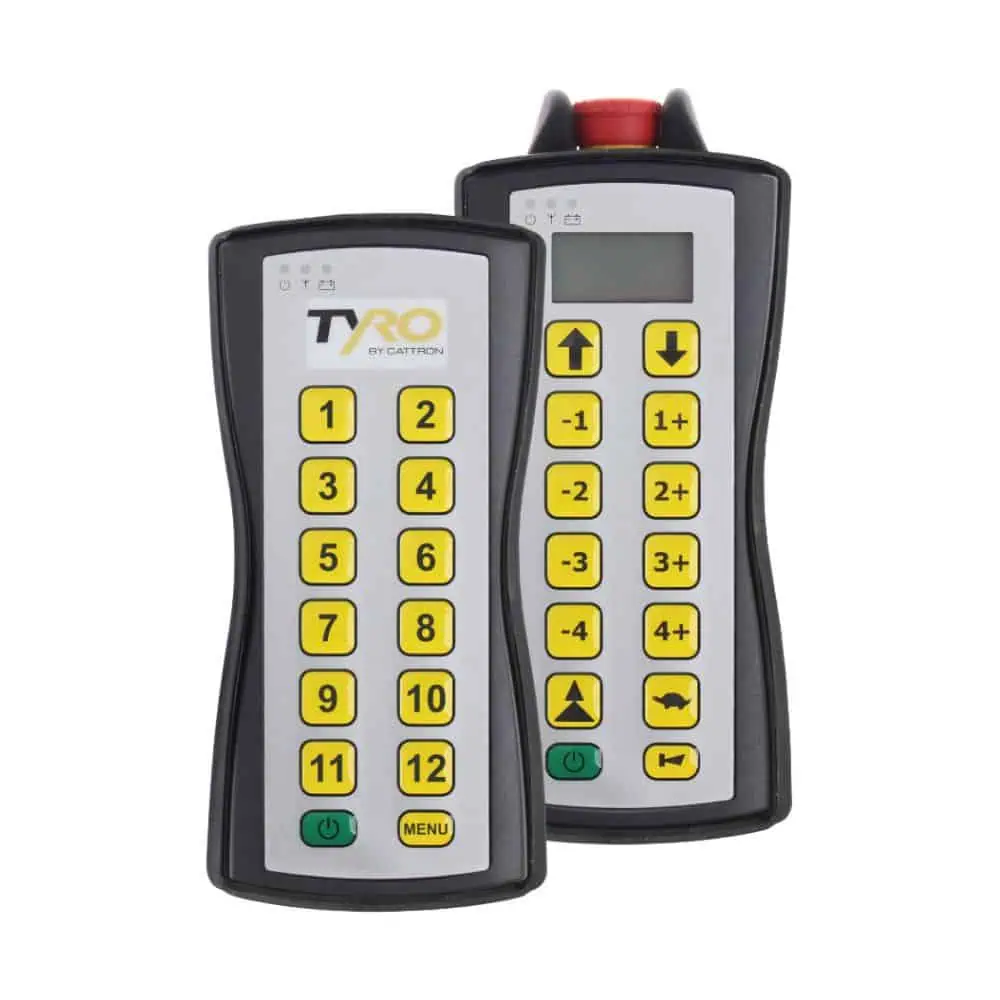
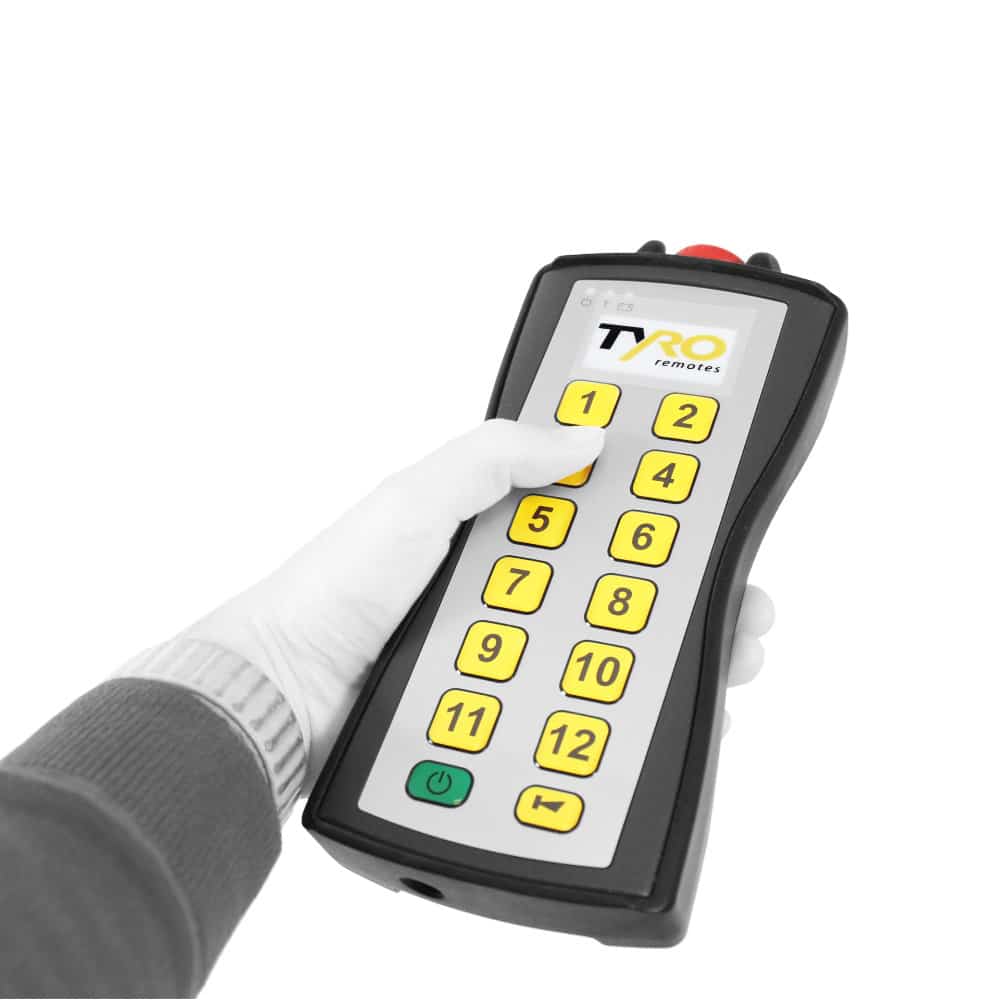
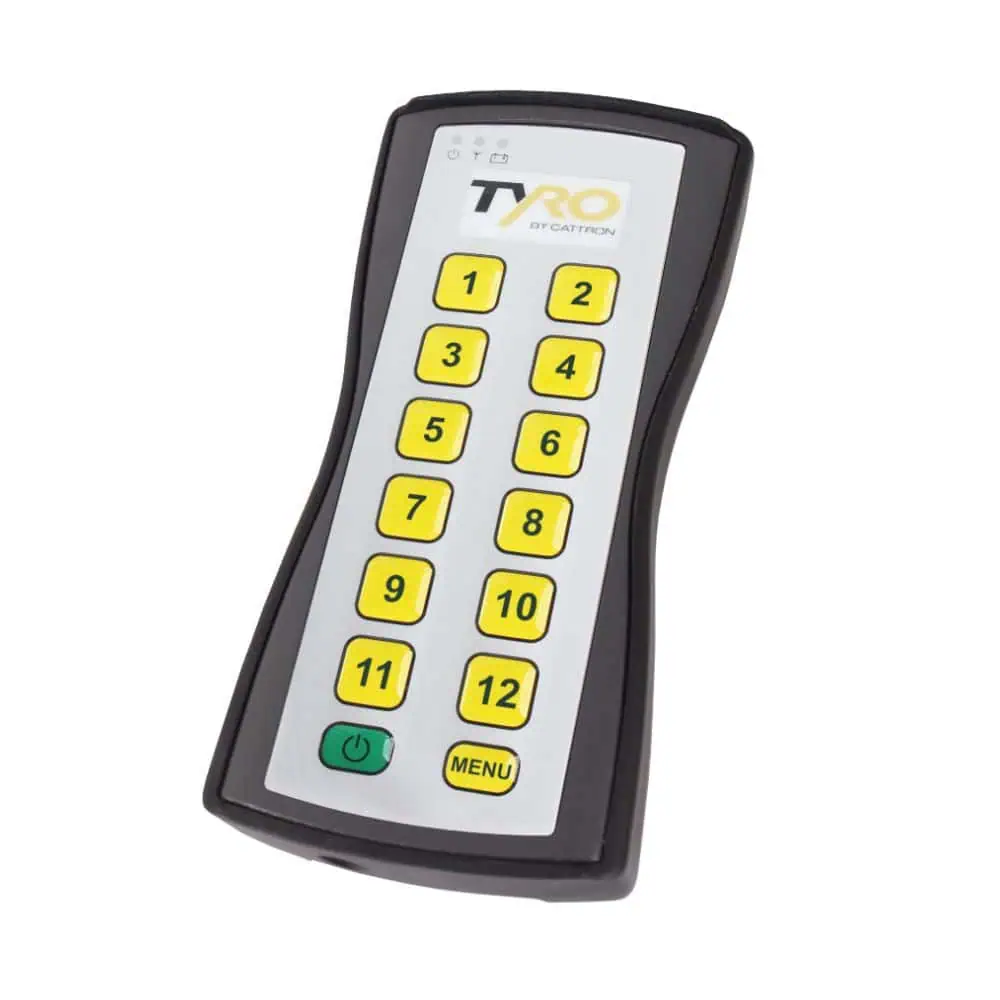
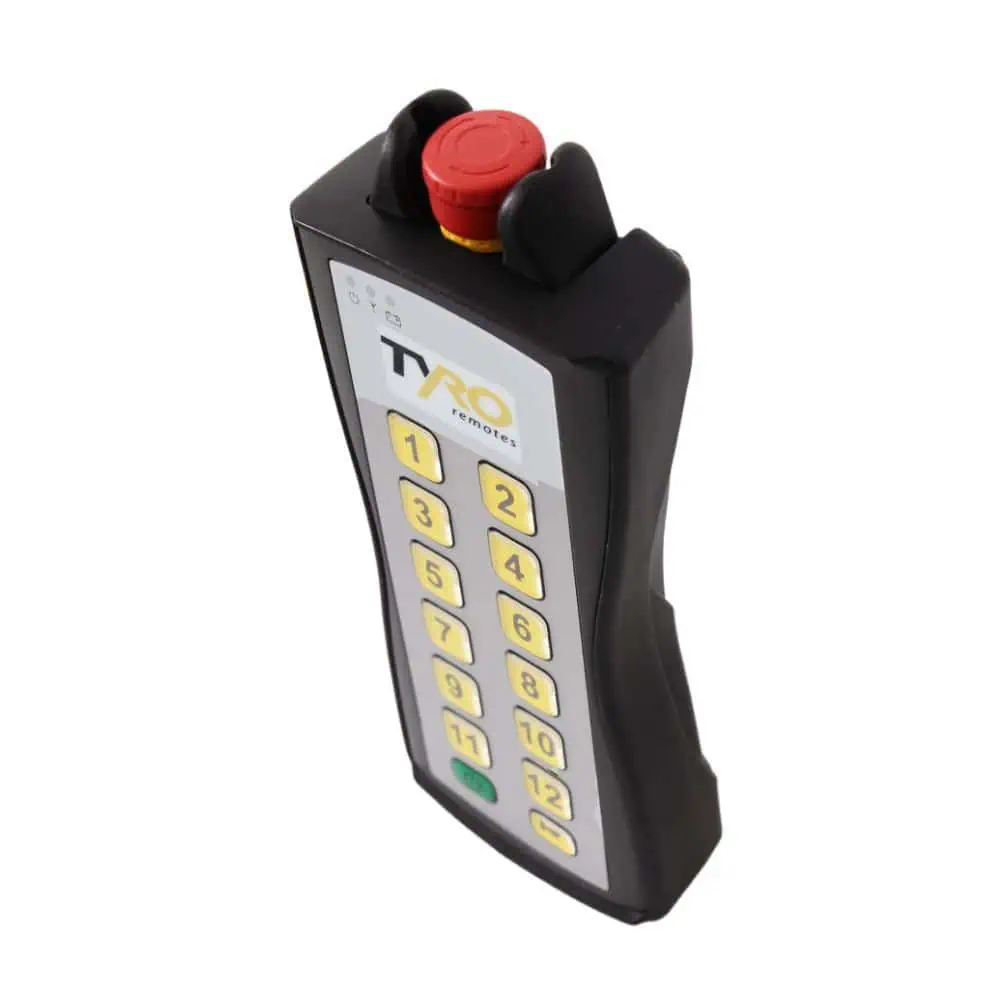
• IP65-rated ABS housing • 12 buttons plus a menu key • Duplex communication • Flexible menu configuration • Frequency hopping • Global frequencies: 434 MHz / 915MHz / 2.4GHz • Multiple programmable I/O boards are possible • Real-time feedback using LED lights and/or an LCD screen (optional) • Compatible with the Aquarius 2S and Auriga 2S receivers
The Tyro by Cattron Cetus 2S is a multifunctional industrial wireless remote control system engineered for demanding environments where safety and reliability are top priorities. The transmitter is highly adaptable and can be configured to match your operational and branding requirements.
You can integrate your company logo and choose custom key icons to align the transmitter with your product line. An optional safety package is available for enhanced ISO 13849‑1 PL certification.
Built with a rugged housing, an industrial‑grade keypad, and an optional user‑friendly display, the Cetus 2S delivers intuitive, dependable operation even in the harshest conditions.
🔧 Features
📡 Frequency
Global spectrum support: 434 MHz, 915 MHz, 2.4 GHz
Frequency hopping for stable communication
🛡 Protection
IP65_rating
🏗 Housing
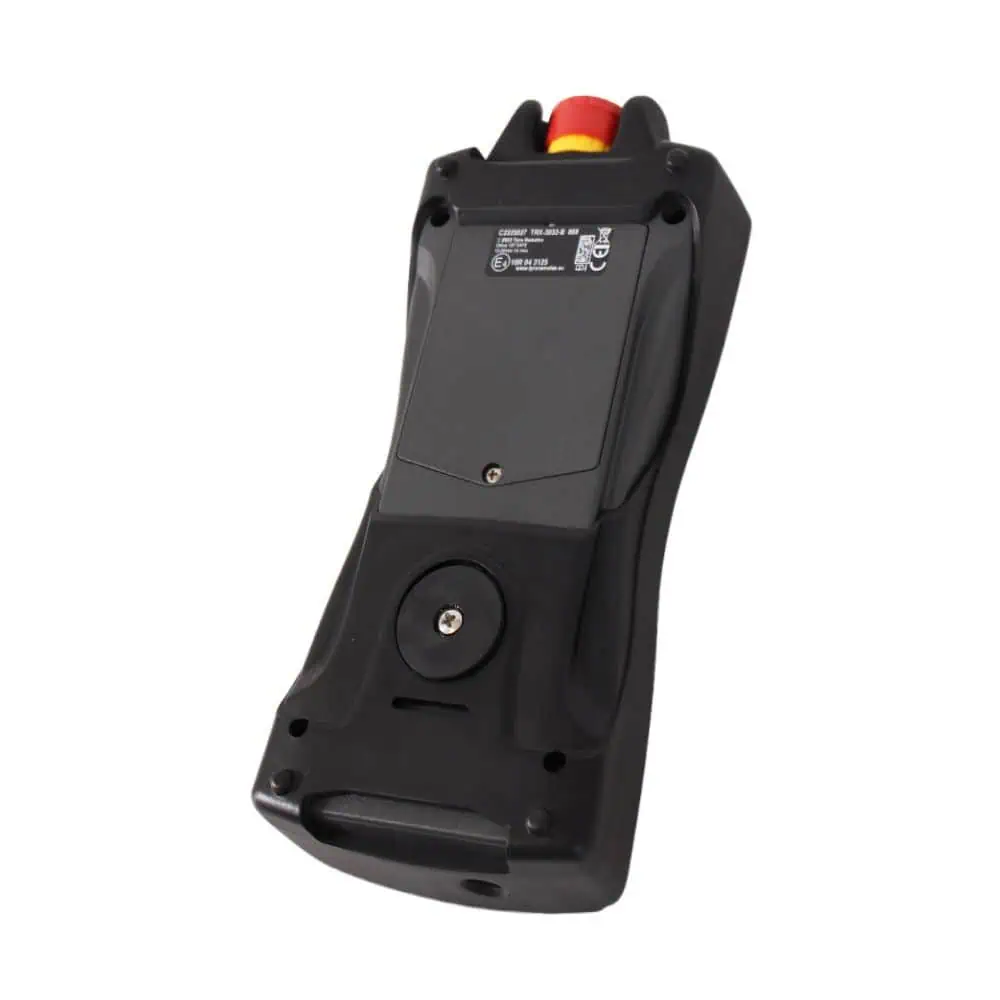
Industrial‑grade ABS enclosure
⌨ Button Layout
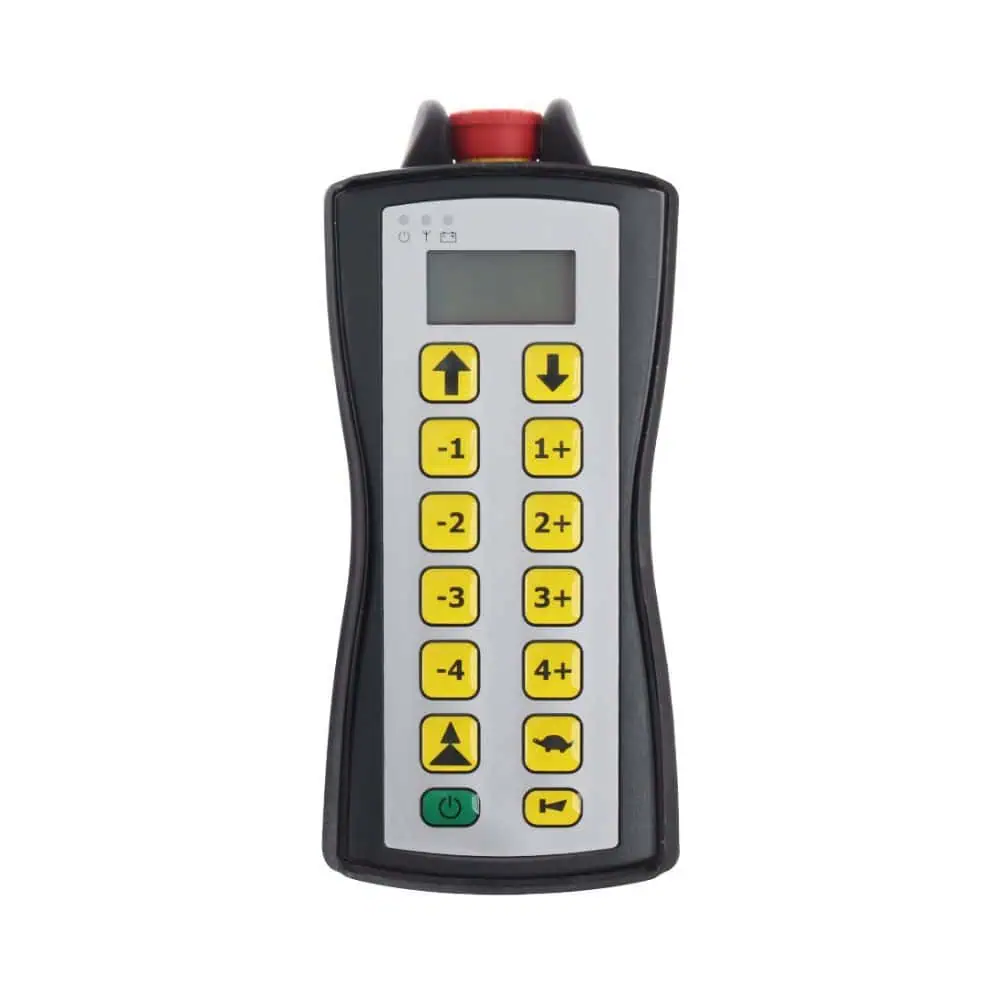
Keypad with 12 function keys plus a menu button
Optional e‑stop button
🔄 Communication Mode
Duplex communication for real‑time responsiveness
🔋 Battery
Three 1.2 VDC 1500 mAh Ni‑MH rechargeable cells
Approx. 5‑hour charging time
🔌 Battery Life
40 hours of typical use
10 hours with keypad + LCD backlighting enabled
📜 Safety & Compliance
ISO 13849‑1 (PL certification pending)
CE, FCC, ISED, RCM, RED, ECE‑R10
🔁 One‑to‑Many / Many‑to‑One Capability
Control flexibility includes:
One transmitter → multiple receivers
Multiple transmitters → one receiver
Receiver limits:
434 MHz / 915 MHz: up to 10 receivers
2.4 GHz: up to 8 receivers
📶 Antenna
Integrated antenna
🧩 Options
Feedback
Real‑time feedback via LED indicators and/or LCD display
Safety Package
Enhanced ISO 13849‑1 PL certification
Includes emergency stop button
Customization
Add your logo to the OCU
Choose custom icons to match your application
Tailor the interface to your brand identity
🧰 Accessories
Charger wall mount
12/24 V charger kit
Lanyard
1500 mAh Ni‑MH rechargeable battery pack
Video
Programming a new/additional transmitter to the Aquarius 20F receiver
Please note:All systems are already programmed at the factory.
If you wish to program a new or extra transmitter to the Aquarius receiver, please follow the steps shown below:
Make sure that the receiver is correctly connected and has a supply voltage.
Press the black programming button at the bottom of the receiver for 1 second, and the status LED will light up red.
Switch on the transmitter, and the LED on the receiver will now flash yellow.
The transmitter is now programmed to the receiver.
Make sure it works by pressing a button; if the status LED on the receiver flashes yellow (± 2x per second), the programming was successful.
To delete all transmitters from the receiver’s memory, keep the programming button pressed for more than 8 seconds until the red status LED on the receiver turns off. This will also reset the configuration to the default settings.
Limitation
Multiple transmitters can be programmed. However, only one transmitter can be active at a time. This is the transmitter that switches on the receiver. Another transmitter is ignored until the receiver is switched off (or has gone out of range) and started by that other transmitter.
Instruction video Aquarius receiver
The video below shows a different remote control, but the pairing operation on the receiver side is the same.
Programming the Repeater radio
Corresponding transmitters: Musca, Sedna, Pyxis, Corvus, Libra, Cetus and the Remote Starter. Please click on the captions icon to enable the subtitles (English, French, German or Dutch).
Radio repeater: teach-in a transmitter in 10 simple steps
Unscrew the enclosure of the Tyro Radio Repeater
Disconnect the battery
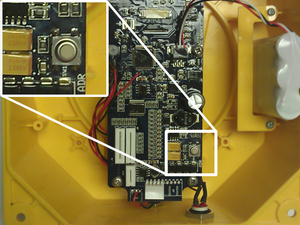
Press the white button on the PCB and keep it pressed during the next steps
Reconnect the battery
Switch on the transmitter
Release the white button
Turn over the Radio Repeater and check if it has been programmed
The LED on the Radio Repeater will light up when you give commands with the remote control
Close the Tyro Radio Repeater enclosure and screw it tight
The system is ready for use
Repeat the above steps to teach-in multiple transmitters to the Tyro Radio Repeater.
To erase all transmitters from the system, disconnect the battery, press the white button, reconnect the battery and press the white button for at least 10 seconds.
We may request cookies to be set on your device. We use cookies to let us know when you visit our websites, how you interact with us, to enrich your user experience, and to customize your relationship with our website.
Click on the different category headings to find out more. You can also change some of your preferences. Note that blocking some types of cookies may impact your experience on our websites and the services we are able to offer.
Essential Website Cookies
These cookies are strictly necessary to provide you with services available through our website and to use some of its features.
Because these cookies are strictly necessary to deliver the website, refusing them will have impact how our site functions. You always can block or delete cookies by changing your browser settings and force blocking all cookies on this website. But this will always prompt you to accept/refuse cookies when revisiting our site.
We fully respect if you want to refuse cookies but to avoid asking you again and again kindly allow us to store a cookie for that. You are free to opt out any time or opt in for other cookies to get a better experience. If you refuse cookies we will remove all set cookies in our domain.
We provide you with a list of stored cookies on your computer in our domain so you can check what we stored. Due to security reasons we are not able to show or modify cookies from other domains. You can check these in your browser security settings.
Other external services
We also use different external services like Google Webfonts, Google Maps, and external Video providers. Since these providers may collect personal data like your IP address we allow you to block them here. Please be aware that this might heavily reduce the functionality and appearance of our site. Changes will take effect once you reload the page.
Google Webfont Settings:
Google Map Settings:
Google reCaptcha Settings:
Vimeo and Youtube video embeds:
Privacy Policy
You can read about our cookies and privacy settings in detail on our Privacy Policy Page.



 Reload document
  Open in new tab